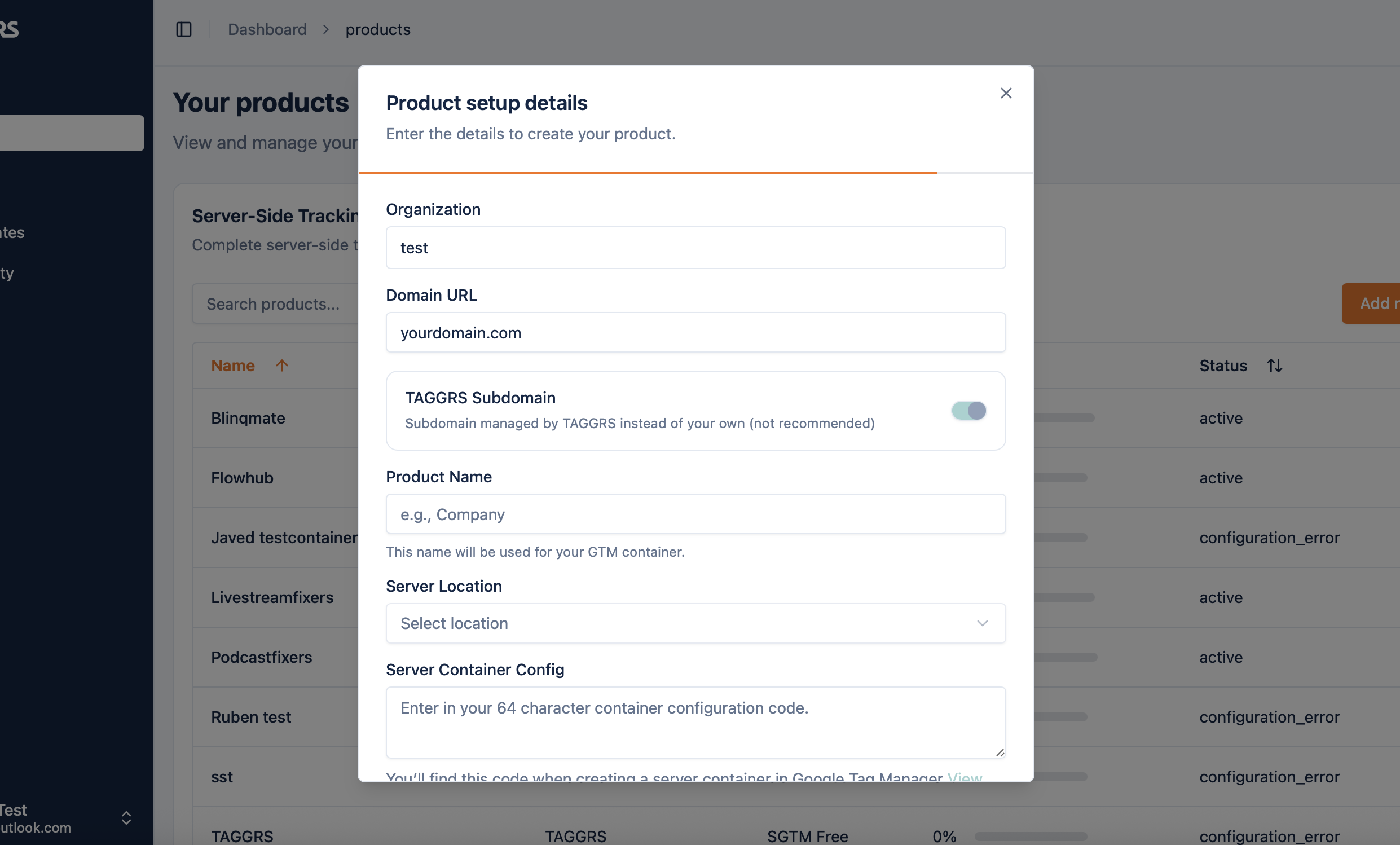
This guide explains why a custom subdomain is recommended, how DNS configuration works, and how to set it up with common hosting providers, such as Cloudflare, Shopify, GoDaddy, TransIP, and Hostnet.
We strongly recommend using a custom subdomain on your own domain instead of a TAGGRS-managed subdomain. Why? Because a custom subdomain:
track.yourdomain.com
Once entered, TAGGRS automatically generates the required DNS record. Keep this information open, as you will need it in the next step.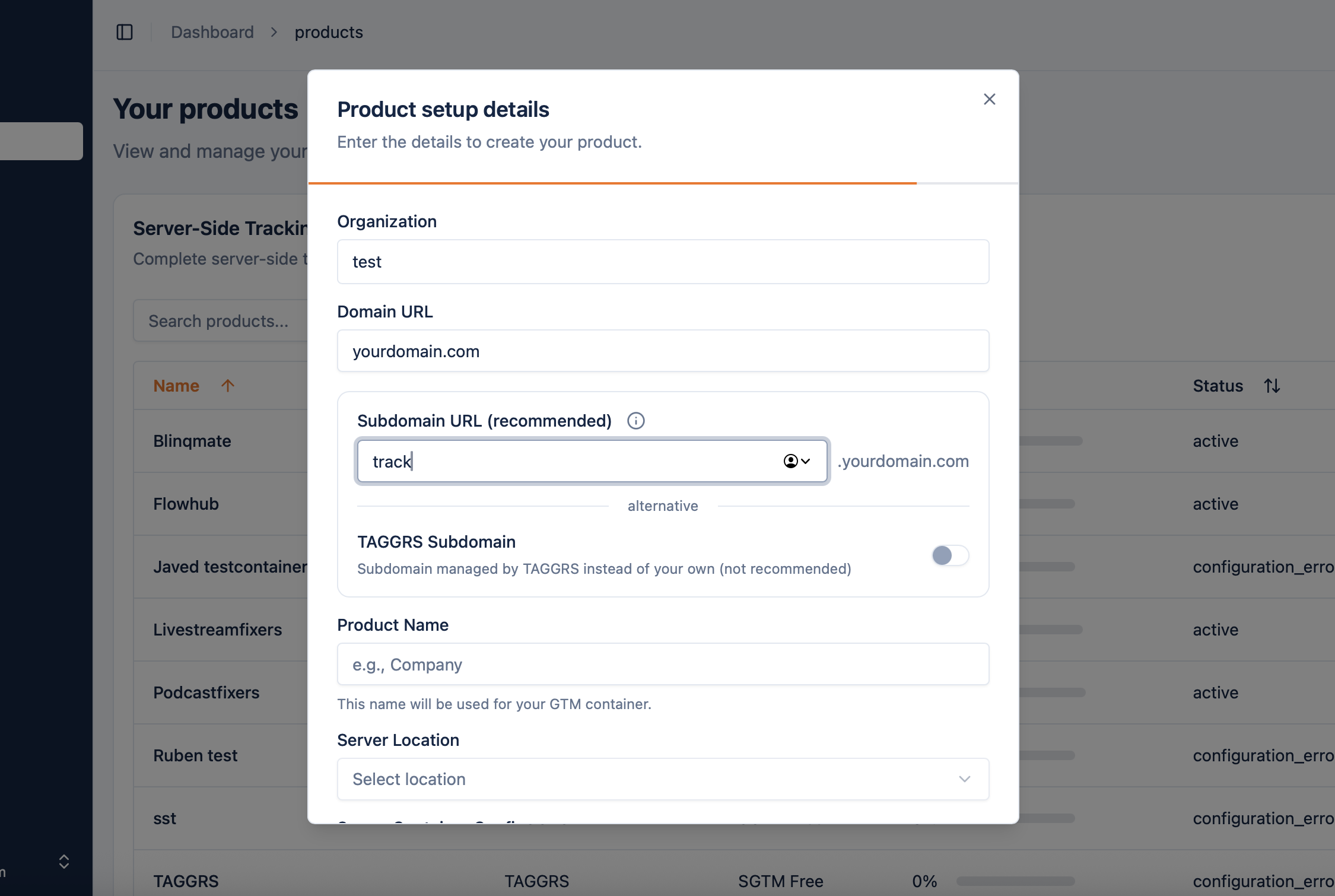
Log in to the platform where your domain is hosted and navigate to DNS management. Add a new A record using the values provided by TAGGRS.General DNS settings:
Type: A
Name / Host: subdomain prefix (for example track)
Value / IP address: provided by TAGGRS
TTL: 300 seconds (or the closest supported value)
Below are provider-specific notes:
Cloudflare: Proxy must be disabled (grey cloud), TTL set to 5 minutes
Shopify: Use “Add custom record” in Domains → DNS settings
GoDaddy: TTL 500 seconds recommended
Hostnet / Yourhosting / Argeweb: TTL 600 seconds if 300 is not supported
TransIP: Copy all values exactly as shown in TAGGRS
Mijndomein / Versio / Cloud86: TTL optional or set to 5 minutes if available
If you are unsure which provider hosts your domain, use a hosting provider lookup tool or contact your IT team or web developer.
After saving the DNS record, return to the TAGGRS dashboard and click Validate.
Once validation succeeds:
1. Open your subdomain in a new browser tab
2. You should see a TAGGRS confirmation pageIf the page does not load, there may be a DNS configuration issue.
Refer to the DNS and subdomain troubleshooting guide for detailed error explanations.
⏳ DNS propagation can take up to 24 hours, depending on the provider.
Once the data routing is correctly configured, you should see the green label in your product overview:
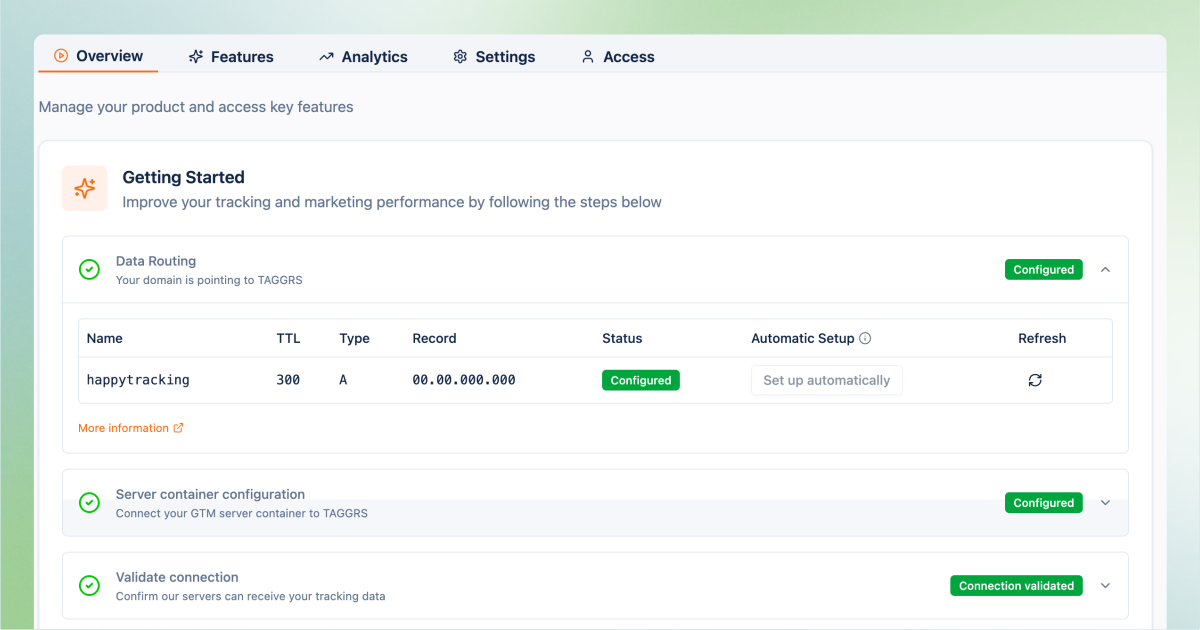
After successful validation, you can continue setting up your server container, connect Google Tag Manager, and start sending data through your new subdomain.
Using a custom subdomain ensures the most reliable, privacy-friendly, and future-proof Server-side Tracking setup with TAGGRS.
If you run into issues or your provider isn’t listed, feel free to contact TAGGRS support. We’re happy to help.
If validation fails or your subdomain shows an error page, the issue is usually DNS-related. The steps below cover the most common causes. Before diving deeper, confirm that DNS records have actually been added. If not, revisit the configuration steps above.
Use a DNS lookup tool such as MX Toolbox to inspect your subdomain.
• The A record (IPv4) must match the IP address shown in the TAGGRS dashboard
• The AAAA record (IPv6) should usually be emptyIf AAAA records exist, they may need to be removed via your hosting provider
• Check for unexpected CAA records that could block SSL issuance.
If these checks are correct, review the scenarios below.
If validation shows a malformed URL (for example track.yourdomain.com. yourdomain.com), the subdomain has been entered twice.
Fix this by removing duplicate entries and ensuring the DNS name contains only the subdomain prefix, not the full domain.
If TAGGRS cannot detect any DNS records, the subdomain does not yet point to a server.
Add an A record that points to the IP address provided by TAGGRS.
A CNAME record is not used for standard server-side tracking (only for specific setups such as the CAPI Gateway).
Validation may fail if:
• An AAAA record overrides the A record
• A CAA record blocks SSL certificate creation.
If a CAA record exists, ensure it allows certificates from letsencrypt.org.
If not, it must be adjusted to allow TAGGRS to issue SSL certificates.
If only AAAA or other record types exist, TAGGRS cannot route traffic.
Create an A record that points to the correct TAGGRS IP address.
403 error
Ensure your web container is published and that you are using the GA4 Measurement ID, not the server container ID.
404 error
Can occur if the server container is removed, not published, or the configuration code is incorrect.Also verify that the subdomain is correctly listed in the container settings.
500 or 504 error
Indicates a server-side issue. Contact TAGGRS support.
502 or 503 error
Check status.taggrs.io for platform issues. If everything is operational, contact support.
DNS_PROBE_FINISHED_NXDOMAIN
DNS propagation may not be complete. Recheck records and allow up to 24 hours.
File not found
Contact TAGGRS support to investigate the container configuration.
An SSL error usually indicates that DNS settings were changed after validation.
This only causes complete data loss if the Enhanced Tracking Script is installed.Check DNS again using MX Toolbox:
• A record must match the TAGGRS dashboard
• AAAA records should be removed if present
If the issue persists, contact your hosting provider or TAGGRS support.
Most DNS and subdomain issues are caused by incorrect record types, duplicate entries, or incomplete propagation.
Carefully reviewing DNS settings resolves the majority of problems.
If your issue persists or you encounter a new scenario that may help other users, please email Support. The TAGGRS team is happy to assist.