
TAGGRS offers a direct integration for authorizing requests to your Google Ads account. When combined with the Google Ads Offline Conversion tag in server-side Google Tag Manager, this integration eliminates the need for manual authentication flows and ongoing credential management.
Using Google Cloud service accounts is also fully supported. The tag works with both Google Cloud–based setups and direct integrations, allowing it to be used outside of TAGGRS-hosted environments if needed.
In this guide, the setup is demonstrated using the TAGGRS direct integration, as it provides the fastest and most straightforward way to configure Google Ads offline conversions.
Before getting started, make sure you have the following in place:
If you don’t have this yet, start here.
Offline conversions require a trigger hook to fire the Google ads offline conversion tag and fetch all necessary data required for your campaigns. This is done using webhooks.
In your website, webhooks can be installed either:
The endpoint of your webhook script always points to the subdomain(s) configured in the TAGGRS dashboard. As a security measure, you must also define a path. Without it, the TAGGRS data client will not process the request. This path can differ per webhook event you want to send, but we recommend keeping it general.
When installing the webhook scripts, you need to make sure it contains all required data. Here is the breakdown with examples and recommendations:
gclid) is the click ID from a Google Ads ad and is required to register conversions. The consent cookies are divided into multiple categories. We advise you to add them all to your payload, however for Google ads, ad_personalization, ad_storage and ad_user_data are required. How to fetch these values and where to find them depends on the CMP you are using and how the cookies get stored.[
{
"gclid": "CjwKjhshh-
CBhBMEiwA0ohh739
hbvsgg2pZM1H25qE
Vim36d1iul0B8CMM
BxVuPFIAhoCgZQQ
AvD_BwE", "ad_storage": "true",
"ad_personalization": "true",
"ad_user_data": "true",
}
]gclid is unavailable.[
{
"first_name": "test", "last_name": "test", "email": "test@example.com", "phone_number": "0612345678", "street": "Test street 131", "city": "Amsterdam", "postcode": "1234EE"
}
]For backend implementations, the data is sent directly from your server environment rather than from the browser. This ensures reliable data collection, even when users leave the page early, block client-side scripts, or use ad-blockers.
Webhooks can be triggered using standard server-side HTTP libraries, such as cURL or Guzzle (PHP), Axios or native HTTP modules (Node.js), or Requests (Python). The payload structure and parameters remain identical for client and server side implementations as described above; only the execution context shifts from client-side to server-side.
Before sending conversions to Google Ads, authorization is required.
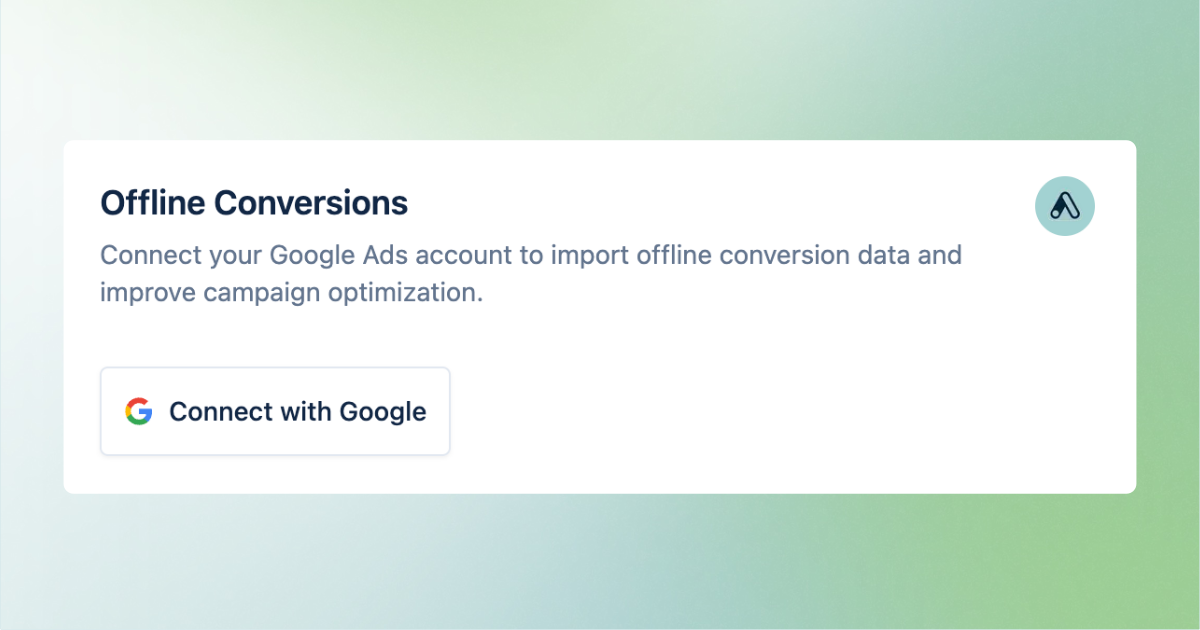
This removes the need for manual Google Cloud service account configuration.
1. Download the JSON file from the official GitHub repository


2. Extract the downloaded ZIP file
3. Import the template file into your respective Google Tag Manager server container.
a. In the server container, go to Templates → New under Tag Templates.
b. Click the three dots in the top-right corner and select Import.
c. Choose the appropriate JSON file and click Save.
Once the import is complete, double-check that the Google Ads Offline Conversion tag by TAGGRS template appears in your Tag Templates list.
1. In the Tags section, click New.
2. For Tag Type, select the template you just uploaded.
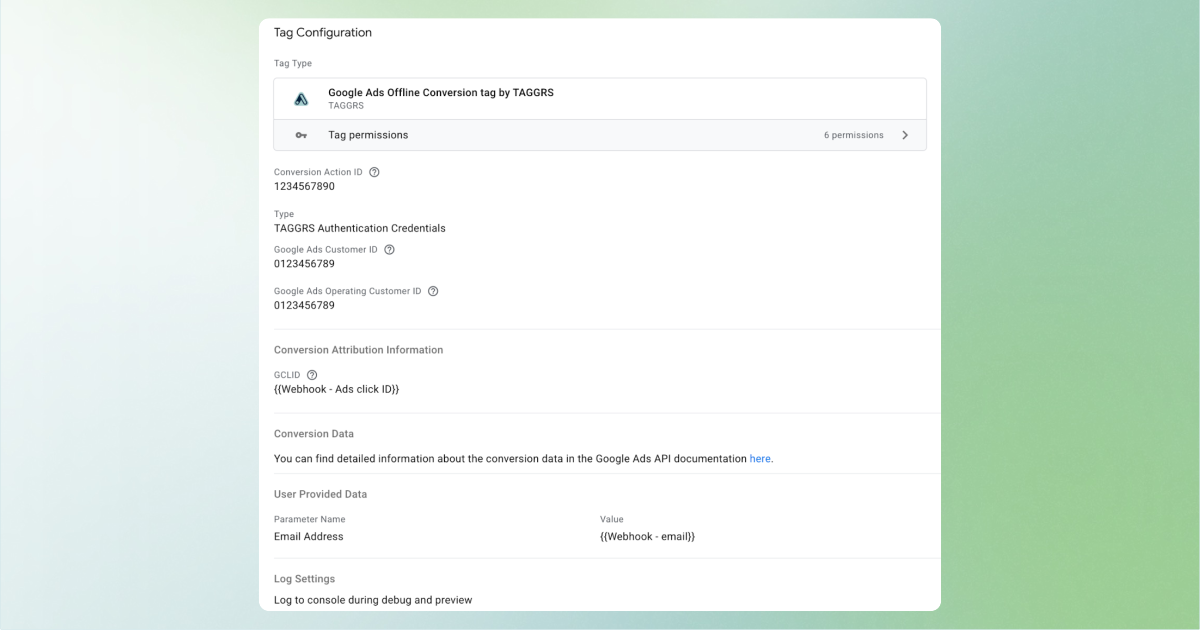
• Conversion Action ID – The ID of the offline conversion you want to track. To track offline conversions, you first need to create an offline conversion type in Google Ads. After creating it, find the Conversion Action ID by editing the goal and checking the URL; the ctId parameter represents the Google Ads offline conversion ID.
• Customer ID – Your Google Ads MCC account ID, found under the drop-down arrow next to your MCC account name.
• Conversion Environment – Set the environment of the uploaded conversion. For offline conversions, this should be UNSPECIFIED, which is selected by default.
• Conversion DateTime – The date and time when the conversion occurred. It must be after the click time.
◦ Specify the timezone.
◦ Format: yyyy-mm-dd hh:mm:ss+|-hh:mm, e.g., 2026-01-01 09:21:33-09:00.
If not set, the current time will be used automatically.
• Gclid – The Google click ID associated with this conversion.
You can enhance your data by adding Custom Variables, Cart Data, and User Data to enrich the conversion tracking.
Once configured, your tag will be ready to send offline conversion events to Google Ads. Below is an example of a configured tag with the basic necessities:
The final part of the configuration is to install the TAGGRS Data Client to your server container. This is required as it allows you to process incoming webhook requests and use them to fire your tag on.
1. In your server container, go to Templates and click New under Client Templates.
2. Click the three dots in the top-right corner and select Import.
3. Choose the TAGGRS Data Client template you recently downloaded from GitHub.
4. Click Save to add the template to your container.
1. In your server container, go to Clients and click New.
2. Select the TAGGRS Data Client as the client type.
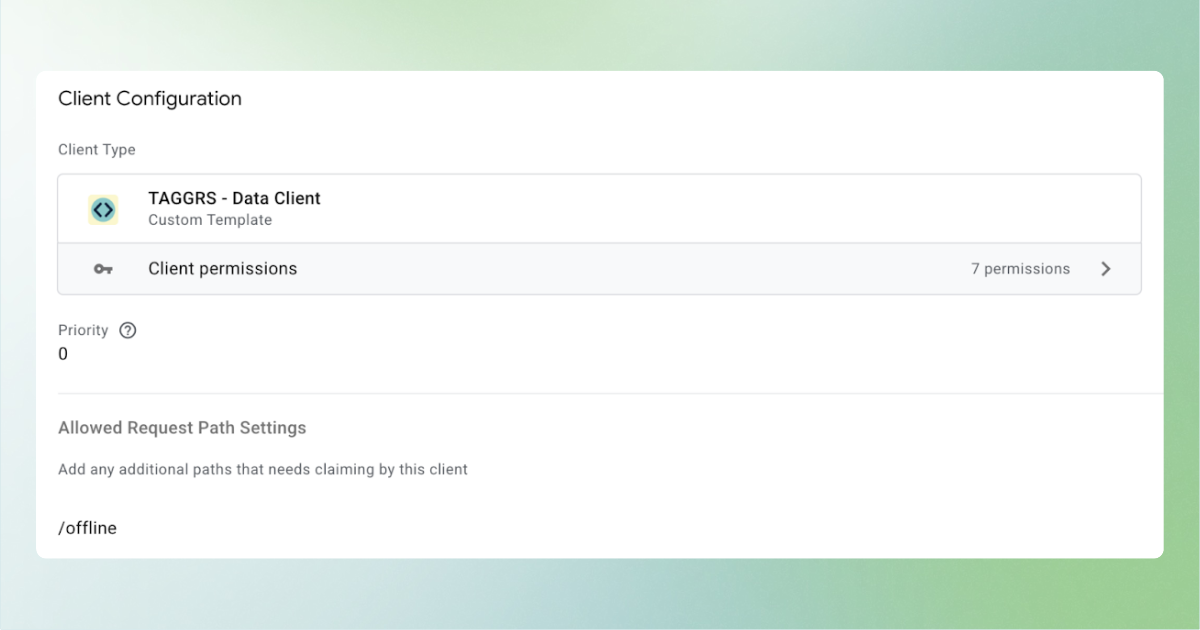
Allowed paths – Specify which paths are allowed to trigger this data client (for example /purchase, /lead, or /offline_conversion).
Only signals matching these paths will be processed.
Once configured, your Data Client should look something like this:
By now your setup should be ready to start measuring offline conversions.
To confirm the setup is working:
If no data appears, double-check your webhook payload (GCLID, consent cookies), tag configuration, and Data Client paths.