Enhanced Tracking Script

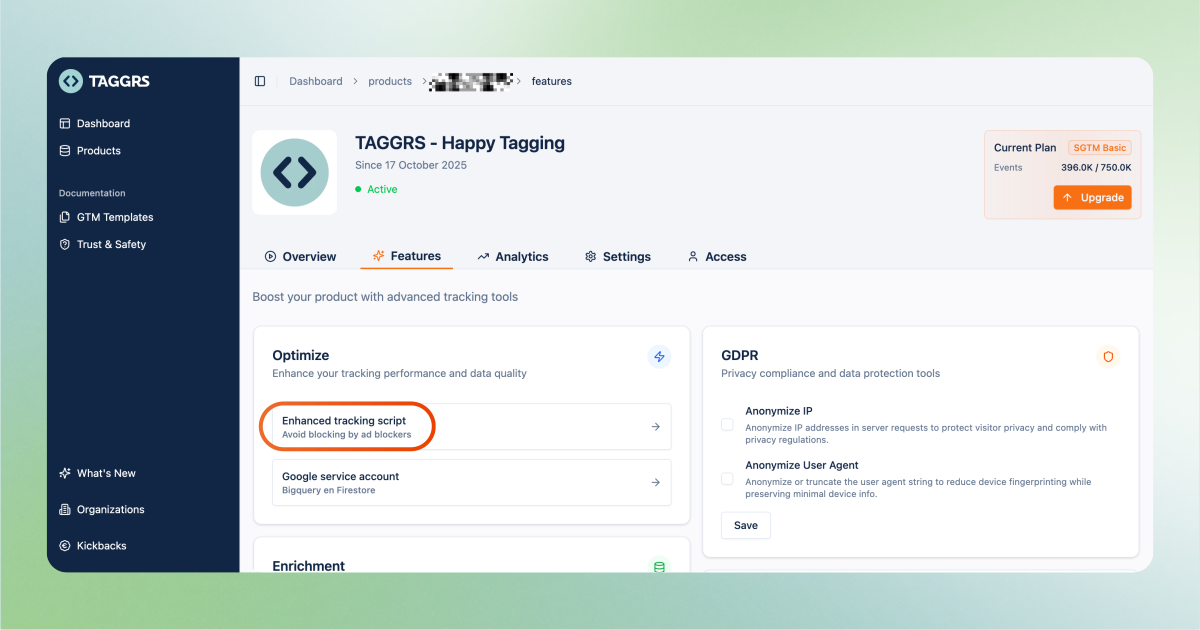
The TAGGRS Enhanced Tracking Script is designed to mask the GTM script and extending cookie lifetimes for browsers using new ITP settings, ensuring you capture more reliable analytics data, even in the presence of ad-blockers and privacy-focused browsers like Safari. This guide walks you through the easy implementation of this script, so you can quickly improve the reliability of your tracking across all major browsers.

Choose your options in TAGGRS dashboard

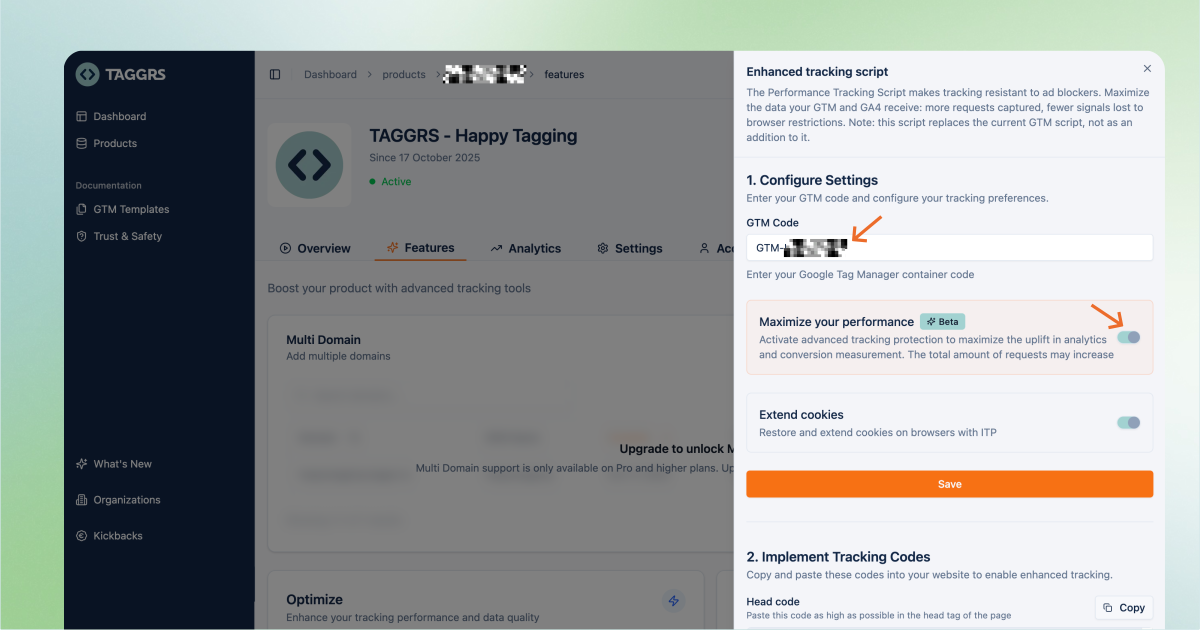
In the Advanced settings of the TAGGRS Dashboard, select:

- Extend cookies: Extends cookie lifetimes for browsers with ITP (e.g. Safari).
- Anti-adblocker: Renames the GTM script with another name (containerid.js) to avoid detection by ad-blockers (enabled by default).

Add Your web container ID

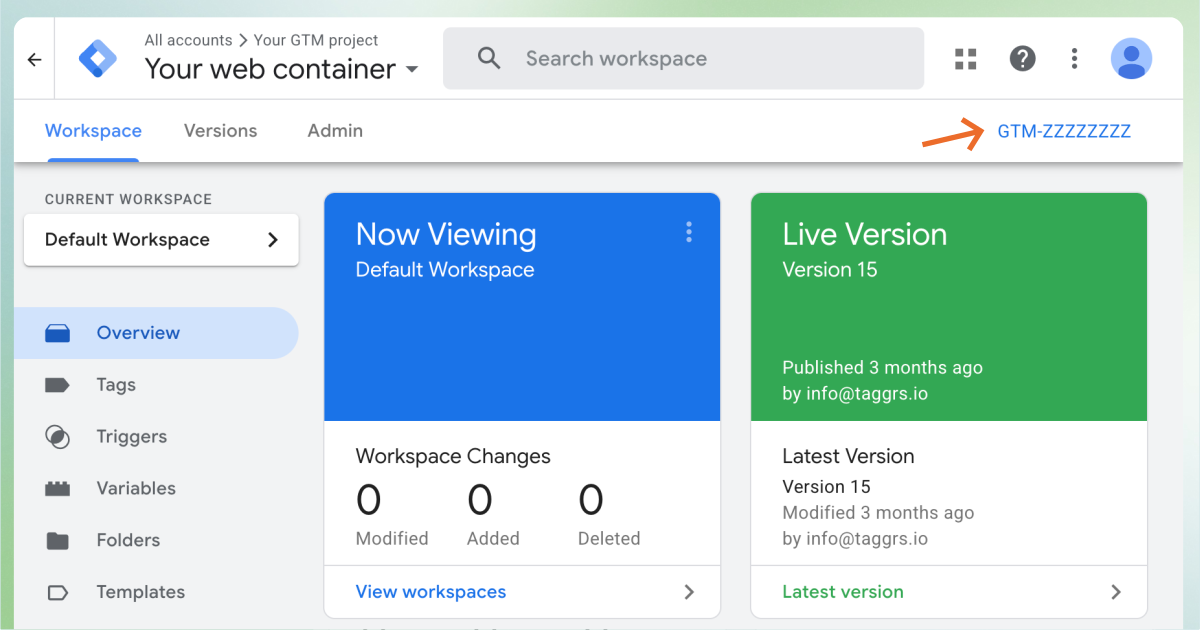
1. Go to Google Tag Manager and navigate to the web container.
2. Copy the web container ID.
3. Enter the ID in the TAGGRS Dashboard to generate the Enhanced Tracking Script.

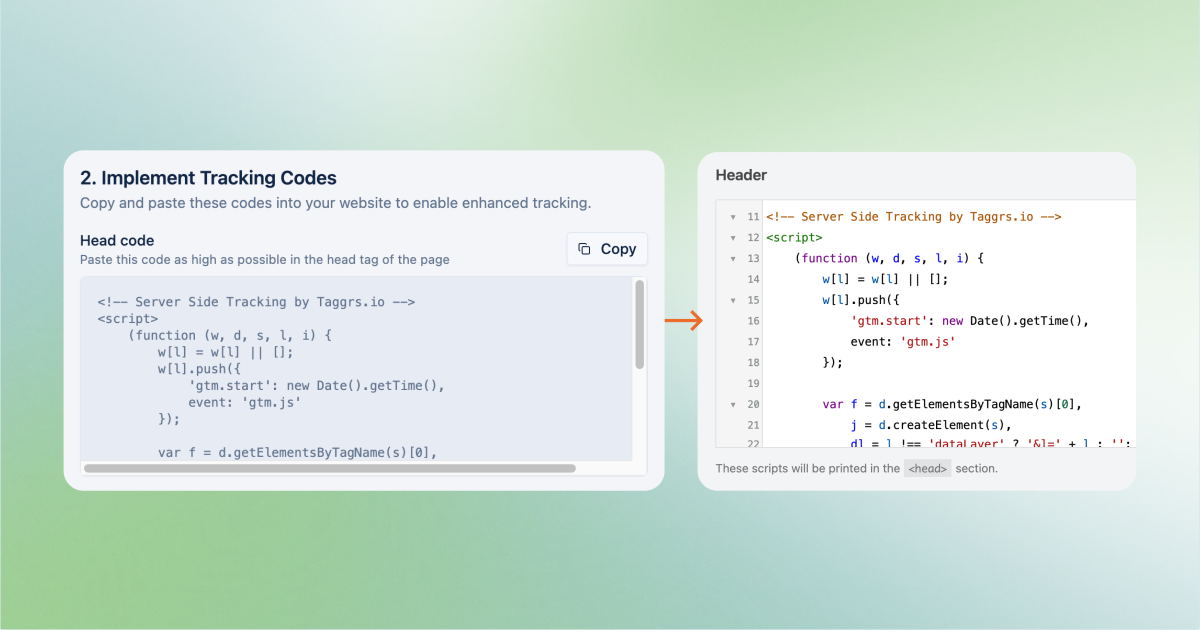
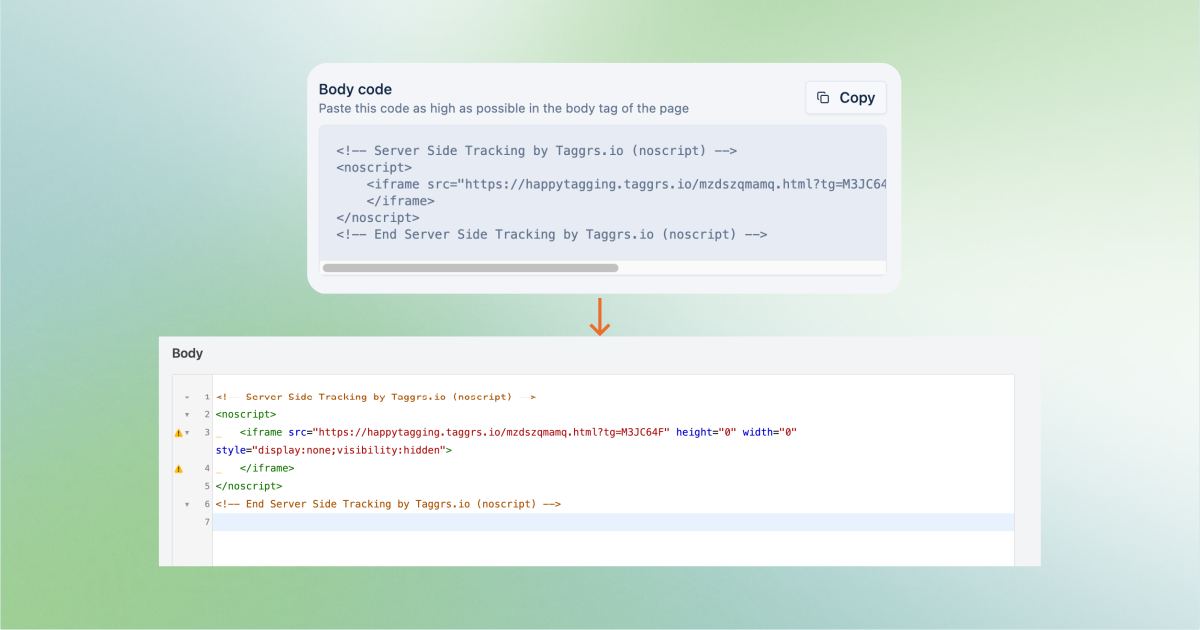
Copy and paste Script Codes

Head code: Place the generated script as high as possible in the <head> of your website.
Body code: Place the generated script as high as possible in the <body> of your website. These scripts replace the standard GTM script.

In case you use the Enhanced Tracking Script without Anti-Adblocker and Extend Cookielifetime, continue to the following steps:

Server Container ID Copy (server container)

Go to your Server Container in Google Tag Manager and copy the Server Container ID.

Create Client in Google Tag Manager (server container)

1. Go to the menu on the left and navigate to Clients.
2. Click New to create a new client.

Set up client in Google Tag Manager (server container)

1. Give the new client a name, for example, Google Tag Manager.
2. Click Client Configuration and select Google Tag Manager Web Container as the client type.
3. Under Allowed Container IDs, insert the previously copied Server Container ID.
4. Also add the Web Container ID (client-side) that you used in the TAGGRS dashboard for the Enhanced Tracking Script.
5. Make sure Enable region specific settings is disabled.
6. Leave Priority set to 0.

Save and publish

Save your settings, submit, and publish the updated containers to activate the Enhanced Tracking Script.

Expert insight: The use of the Enhanced Tracking Script does not increase the differences between client side tagging and server side tagging, but ensures that both increase in quantity.

Troubleshooting

Implementing the Enhanced Tracking Script significantly improves data accuracy, but issues can occur during setup. Below are the most common errors, their causes, and how to resolve them.

These issues apply universally and usually allow you to identify the root cause quickly. If your issue is not listed, you can always contact TAGGRS support.

Error When Adding the GTM Code from TAGGRS

Issue: Errors appear when adding the Enhanced Tracking Script to your CMS (for example WordPress).

Explanation: These errors often relate to CMS validation or script injection warnings.

Solution: Even if these errors appear, the Enhanced Tracking Script continues to function correctly. No further action is required unless tracking is visibly broken.

400 Error in the Browser Console

Issue: A 400 error appears in the browser console after adding the Enhanced Tracking Script.

Cause: A required client has not been created in the server container.

Solution: 

  • Verify that a Google Tag Manager web container client exists in the server container
  • Ensure the correct web container ID and server container ID are configured

This step is mandatory for the Enhanced Tracking Script to function correctly.

Duplicate Google Tag Manager Code Detected

Issue: The browser console shows duplicate GTM scripts, leading to inaccurate data.

Cause: Both the original GTM script and the Enhanced Tracking Script are loaded simultaneously.

Solution

  • Remove the original GTM snippet from your website
  • Keep only the Enhanced Tracking Script active

Running two GTM instances at the same time will negatively affect data accuracy.

Debug Mode No Longer Works in the server container

Issue: The preview mode in the server container fails or shows connection errors.

Cause: The server container ID was used instead of the web container ID in the Enhanced Tracking Script.

Solution

  • Verify that the Enhanced Tracking Script uses the web container ID
  • The server container ID should only be used inside the server container configuration

This allows Google Tag Manager to establish a proper connection for preview mode.

Tracking Stops Completely After Adding the Enhanced Tracking Script

Issue: No data is sent after implementing the Enhanced Tracking Script.

Cause: The request limit in the TAGGRS dashboard has been reached.

Solution

  • Monitor request usage in the TAGGRS dashboard
  • Upgrade or adjust your plan if necessary
  • Ensure request limits are not exceeded to avoid tracking interruptions

Once the request limit is reached, Tag Manager pauses tracking automatically.

Useful resources

Learn how to fix the most common issues

Read how to maintain accurate measurement and attribution despite ad blockers