

Logo of TAGGRS, written in blue and with a small favicon
HomeServer-side TrackingMeta CAPI Gateway
Introduction
Get started
Get started with TAGGRSSet up Google Tag ManagerAdd the GTM Data LayerConfigure GTM transformationsTest the setupDebuggingAnalytics dashboard
Migrate from Google CloudMigrate from hosting
Shortcuts
GTM Copy PasteReady-made templates
GA4 Server-side Tracking
Setup in GTMCreate GA4 Event TagsGA4 tag setup in server containerE-commerce events in GTM
Google Ads Server-side Tracking
Install Conversion LinkerSet up Conversion TrackingConfigure Enhanced ConversionsDeploy Remarketing Tags
Facebook Server-side Tracking
Set Meta PixelImprove your EMQ ScoreInstall Meta CAPIMeta Events Deduplication
LinkedIn Server-side Tracking
Install LinkedIn Insight TagSet up LinkedIn CAPILinkedIn Events Deduplication
TikTok Server-side Tracking
Set up TikTok PixelInstall TikTok Events APITikTok Events Deduplication
Pinterest Server-side Tracking
Set up Pinterest TagConfigure Pinterest Conversions APIPinterest Events Deduplication
Snapchat Server-side Tracking
Set up Snap PixelSnapchat Conversions APISnapchat Events Deduplication
TAGGRS Tracking Tags and Tools
Tracking TagsGoogle Service Account integrationsGTM LogsProfit TrackingData Enricher ToolWebhooks TesterEnhanced Tracking ScriptMulti Domain ToolClick ID RecoveryConsent Tool
Configurations
Billy Grace Server-side TrackingLeadPages Server-side TrackingPiwik PRO Server-side TrackingCDN Server-side TrackingShopify Server-side TrackingActiveCampaign Server-side TrackingKlaviyo Server-side TrackingSpectacle Server-side Tracking
Server-side Tracking for e-commerce
Shopify Data LayerShopware Data LayerMagento Data LayerWooCommerce Data LayerPrestashop Data LayerLightspeed Data Layer
Consent Management server-side
Activate Consent ModeConfigure AxeptioConfigure Cookie Confirm

Configure TAGGRS with Cookie Confirm via Google Tag Manager

This guide details how to set up Cookie Confirm as a consent management platform (CMP) for server-side consent handling, enabling a privacy-compliant tracking setup with TAGGRS. The configuration is divided into two parts: client-side and server-side, since consent must be managed within your sGTM container as well. This ensures that incoming requests are processed only when the user has provided the appropriate consent.
By properly configuring Cookie Confirm to integrate with TAGGRS Server-side Tracking via Google Tag Manager, your organization will comply with privacy regulations such as GDPR, the ePrivacy Directive, and CCPA.

How Cookie Confirm works with TAGGRS

Cookie Confirm manages user consent in the browser (client-side) and passes the consent state to Google Tag Manager. Then, TAGGRS uses these consent signals on the server side to ensure that only data allowed by the user’s choices is processed and forwarded to platforms such as Google Analytics, Google Ads, or Meta.

Prerequisites

Before you begin, make sure you have:

• A Cookie Confirm account
• A TAGGRS account with an active product
• Access to Google Tag Manager (both web and server containers)

Client-side configuration

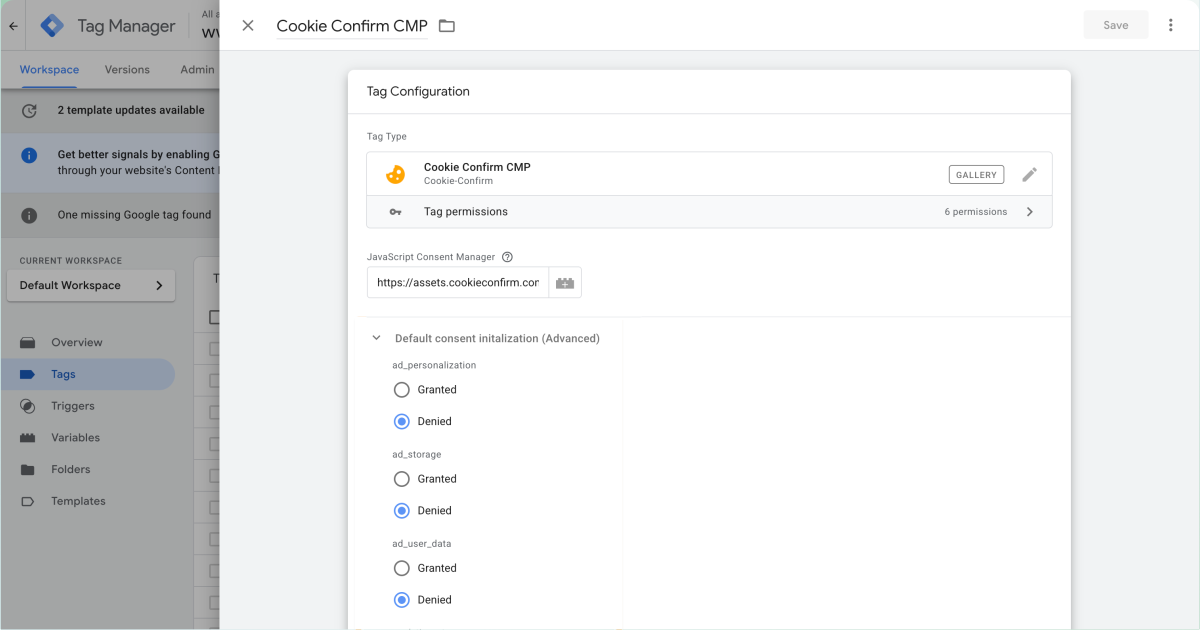
Install the Cookie Confirm CMP tag

1. Log into your Google Tag Manager account
2. Go to Tags → New → Tag Configuration
3. Search for Cookie Confirm CMP in the Community Template Gallery and install the template
4. Set the trigger to Consent Initialization – All Pages.

Logo of TAGGRS Server-side Tracking: a light blue circle with two blue angle brackets
Expert insight
‍
By default, the consent settings of the Cookie Confirm’s GTM template are configured according to GDPR standards. You can change them by updating the consent types from Denied to Granted.
How to create a tag to transmit the consent state in Google Tag Manager with TAGGRS and Axeptio

Block tags until consent is granted

To ensure that tags only fire after a visitor has given consent for a specific category, update the trigger configuration of those tags in Google Tag Manager. Create a Custom Event trigger and use the event name cookie_consent_update.

To properly install Cookie Confirm CMP tag, assign the trigger cookie_consent_update to all tags that should only run after consent is granted.

Assign this trigger to all tags that should only run after consent is granted.

Logo of TAGGRS Server-side Tracking: a light blue circle with two blue angle brackets
Expert insight
Already using Cookiebot? If you are using the standard cookie_consent_update custom event trigger, the current setup is compatible and you don’t need to adjust anything.

Server-side configuration

Once Consent Mode is activated in Google Tag Manager, the tags in your server container automatically read the GCS parameter and respect the user's consent. You don't need to configure anything extra.

Logo of TAGGRS Server-side Tracking: a light blue circle with two blue angle brackets
Expert insight
This is how a GA4 request sent from the browser to your server container look like:

https://sgtm.example.com/g/
collect?v=2&tid=G-XXXXXX&gtm=45je37
&_p=123456&gcs=G101


‍
And this is what it means:
• https://sgtm.example.com/
g/collect
The GA4 collects endpoints but proxies through your server container instead of Google’s own domain.
• v=2
Protocol version for GA4 hits. It simply tells Google which version of the measurement protocol is used.​
• tid=G-XXXXXX
Your GA4 Measurement ID (property stream), masked here as G-XXXXXX. This associates the hit with the correct GA4 property.​
• gtm=45je37
Internal GTM identifier showing which container/runtime produced the hit. Useful mainly for debugging.​
• _p=123456
A pseudorandom ID (page/session “ping” ID) used by GA/gtag to correlate events from the same page or session.​
• gcs=G101
‍
This is the important Consent Mode flag. It encodes which consent categories are granted or denied at the moment this hit is sent. G1 indicates the version of the content string, while the two digits after that are the consent values where 1 stands for Granted and 0 for Denied. In this case, for example, gcs=G101 basically means 'ad_storage' is denied and 'analytics_storage' is allowed.

Create custom blocking triggers

Want more granular control? You can create custom blocking triggers in your server container that prevent tags from firing when consent is denied.

Create the analytics_storage = denied blocking trigger

Create a new trigger with the following settings:
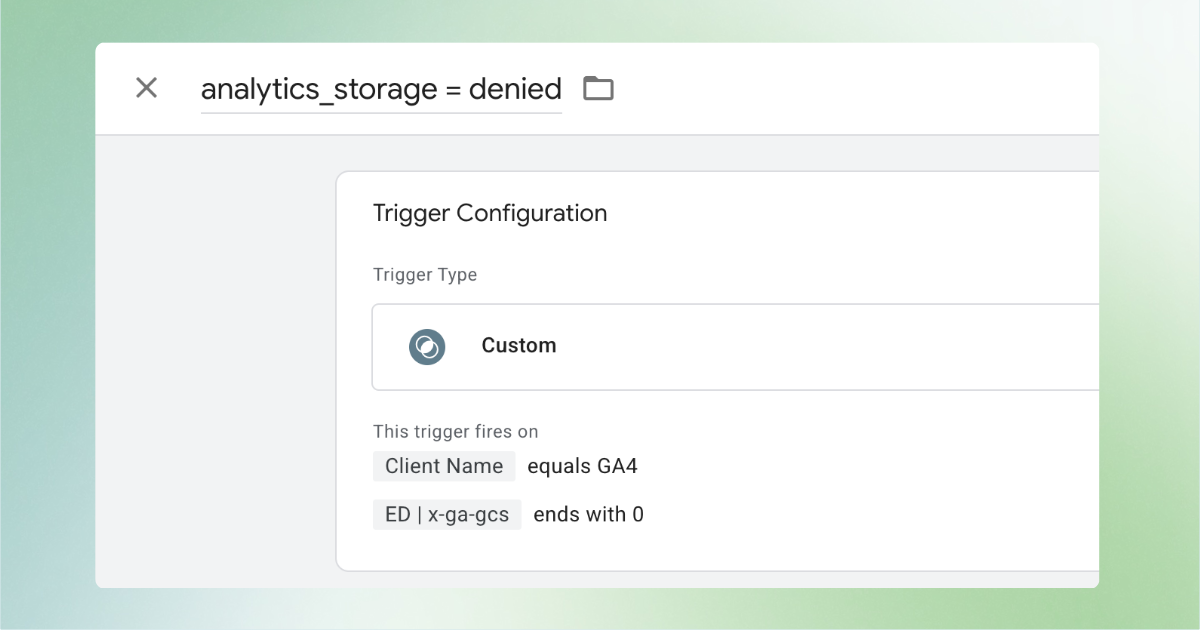
How to create the analytics_storage = denied blocking trigger

• Trigger name: analytics_storage = denied
• Trigger type: Custom
• Trigger fires when:
Client Name equals GA4
ED | x-ga-gcs ends with 0

Logo of TAGGRS Server-side Tracking: a light blue circle with two blue angle brackets
Expert insight
ED | x-ga-gcs
is an Event Data variable that reads the GCS value from the incoming request.

Create the ad_storage = denied blocking trigger

Create a second trigger with the following settings:
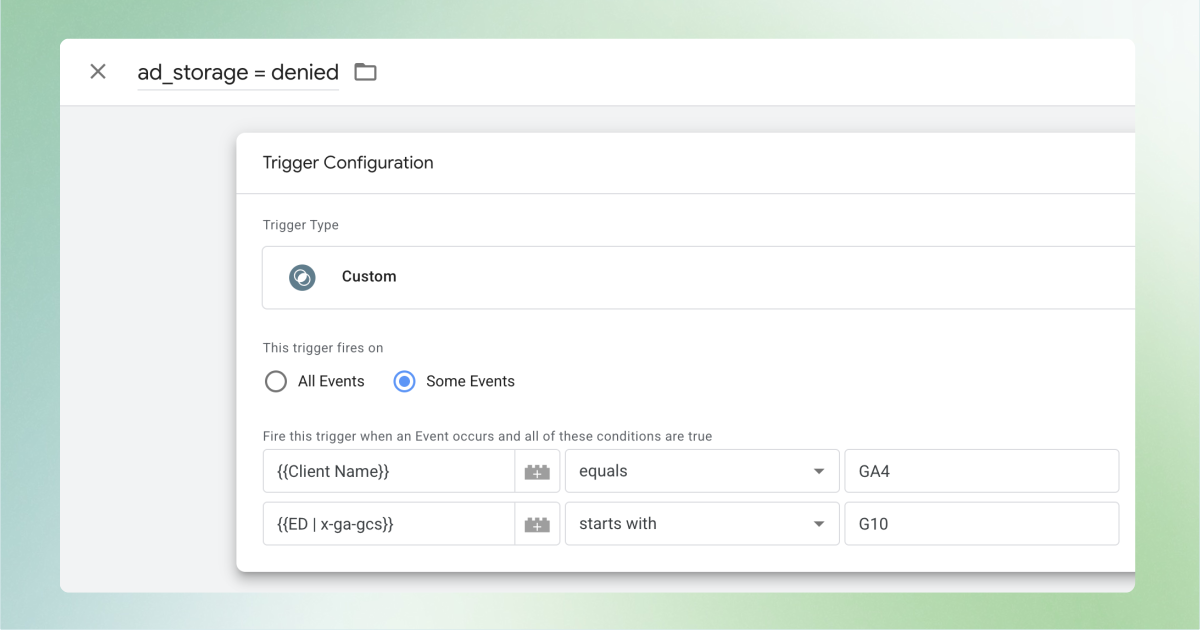
How to create the ad_storage = denied blocking trigger

• Trigger name: ad_storage = denied
• Trigger type: Custom
• Trigger fires when:
Client Name equals GA4
ED | x-ga-gcs starts with G10

Logo of TAGGRS Server-side Tracking: a light blue circle with two blue angle brackets
Expert insight
‍
The value G10 indicates that ad_storage consent is denied.

Apply the blocking triggers to server-side tags

Apply the blocking triggers to the tags that should not fire without consent.

1. Open the tag in your sGTM container
2. Go to Triggering → Exceptions
3. Add the relevant blocking triggers:
analytics_storage = denied
ad_storage = denied

These exceptions ensure that the tag remains blocked whenever a visitor denies consent for the corresponding storage type.

All in all, this setup offers a future-proof approach to consent management: more resilient data collection, full respect for user preferences, and scalable, compliant tracking for every vendor in your stack.

FAQ

Do I need to change any consent parameters in Google tags when using server-side tracking?

No, when Consent Mode is enabled in your Web GTM container, Google tags automatically include a GCS (Google Consent State) parameter in every request sent to your TAGGRS server container. This parameter contains the user’s current consent choices (for example, whether analytics_storage or ad_storage is granted or denied). Google tags in the server container read this value automatically and enforce consent without any additional configuration. This behavior applies to all native Google tags, including GA4, Google Ads.

Useful resources

icon of a white thunder used by TAGGRS to visually introduce Server-side Tracking
Start for free with Server-side Tracking
icon of a white upward arrow
White silhouette of a person used as icon for the support call to action
Get expert support
icon of a white upward arrow
Previous
Axeptio CMP configuration
DOCUMENTATION V1.3
Copyright © 2025 TAGGRS. All right reserved.
TABLE OF CONTENTS
How it worksPrerequisitesClient-side configurationServer-side configurationFAQUseful resources