

• Use our pre-built GTM templates to speed up the process
• Extensive Implementation Guides
• Live Tracking Sessions: catch these on our YouTube channel for a live setup walkthrough per platform.
• Checklist: Use our Server-side Tracking Checklist so you don't miss any necessary steps for implementing Server Side Tracking.
To forward the hostname from the web container to the server container, follow these 2 steps.
Navigate to the Google Tag within your web container. Under standard Configuration parameters, such as send_page_view, input your desired parameter. For example, to transmit the hostname, use the parameter page_hostname with the value {{Page Hostname}}. Save the tag and set the container live.
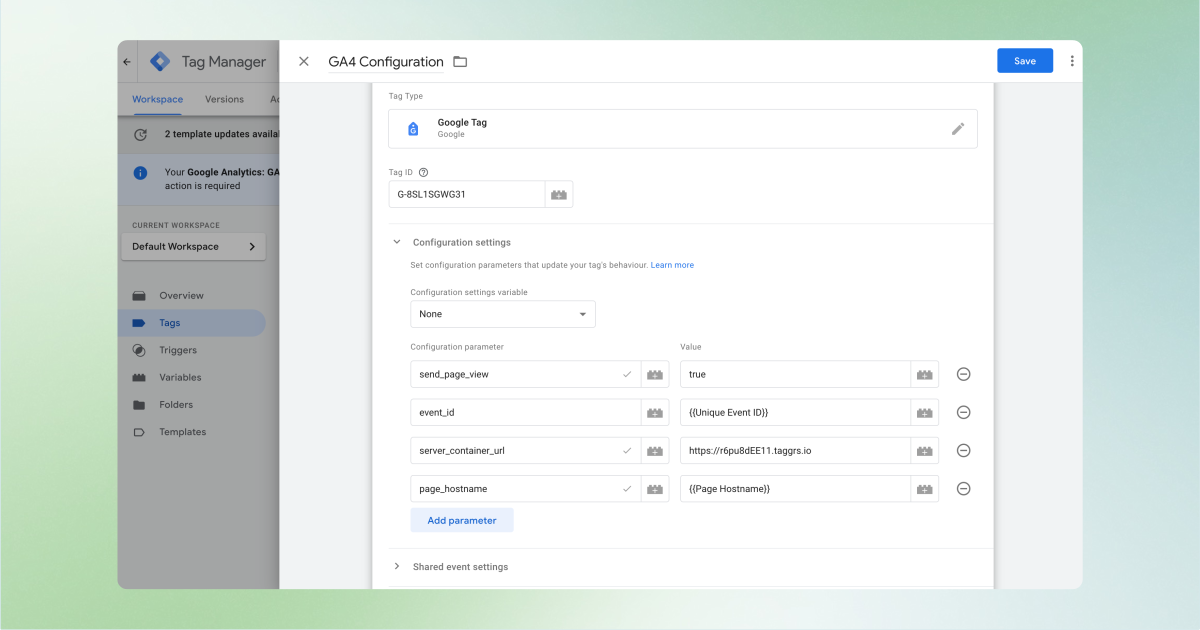
Once the hostname parameter is sent to the server container, proceed to retrieve it. In the server container, go to variables and create a new one. Choose event data as the variable type and input page_hostname in the key path, ensuring it matches what was set in the web container. Then, save the variable and set the container live.
Now, the server container can read this variable. For example, you might use it to trigger an action if the hostname includes .com.
Some platforms need to be set up in both containers, while others should only be configured in the server container.
Here are the platforms that should be configured in both the web and server containers:
And now, the platforms that should be set up in the server container only:
The Google Analytics configuration tag feeds data from the web container into the server container, where you can then process and use this data for your Google tags like Google Ads Conversion Tags. That is why you only need to set up Google Ads in the server container. Some platforms do not support deduplication.
Therefore, it is recommended to configure platforms like Klaviyo exclusively on the Server Side.
Not every software currently offers Server-side Tracking capabilities. However, this is changing. More and more companies are recognizing the value of Server-side Tracking and are working to provide this option. To find out which software can be easily installed server-side via Google Tag Manager, you can check two things:
1. List of tags in the server container
Open the server container. Go to Tags → New. Click on the pencil icon at the top right of the Tag Configuration column.
There, you will see a standard list of tags developed by Google, along with tags developed by the community, found in the template gallery.
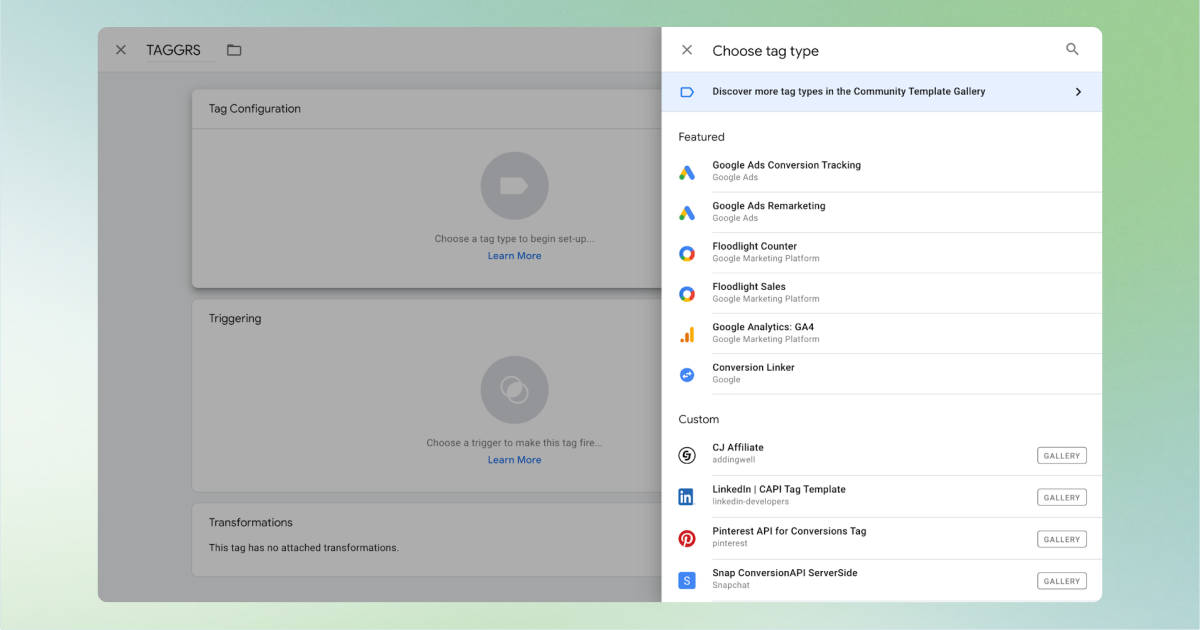
2. Template Gallery in the Server Container
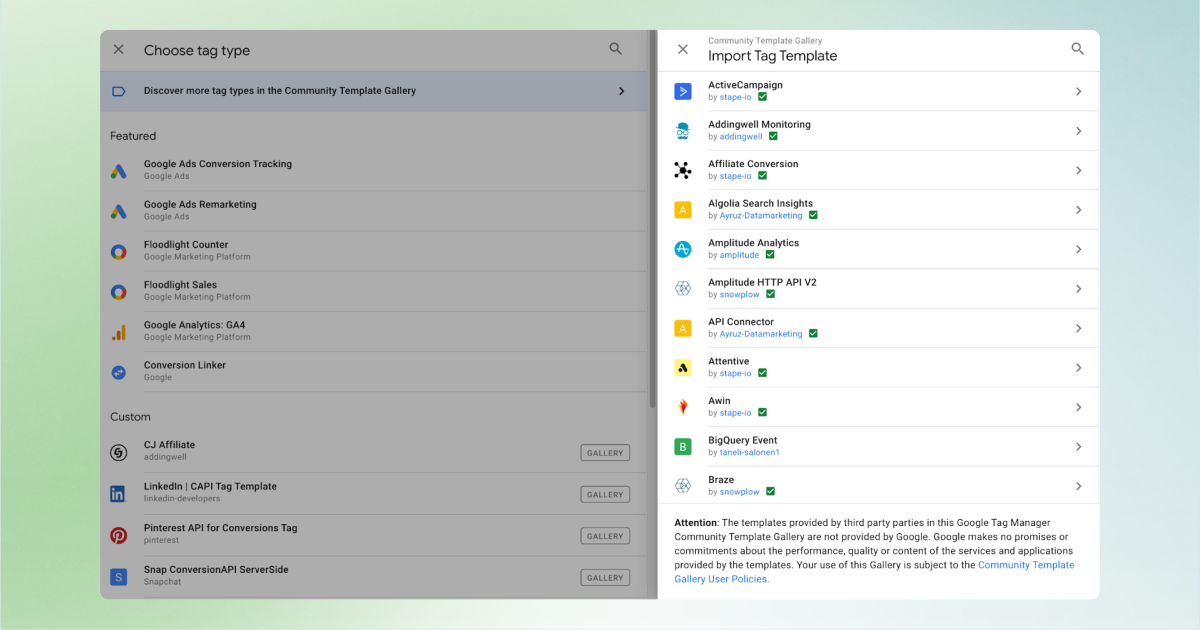
Click on Discover more tag types in the community template gallery as shown in the screenshot below. Here, you will find a comprehensive list of tags for specific software, continuously being expanded.
A common challenge in Tag Manager is repeatedly entering the same information, like a GA4 Measurement ID, across multiple tags. Using a constant variable in GTM solves this by storing a fixed value once so it can be reused everywhere, which reduces typos, makes updates faster (edit in one place, apply everywhere), and saves time when creating or changing tags.
To create a constant in GTM, follow these steps:
1. Go to Variables → New.
2. Choose Variable Configuration, then select Constant. Here, input the value you need to reuse, such as your Measurement ID.
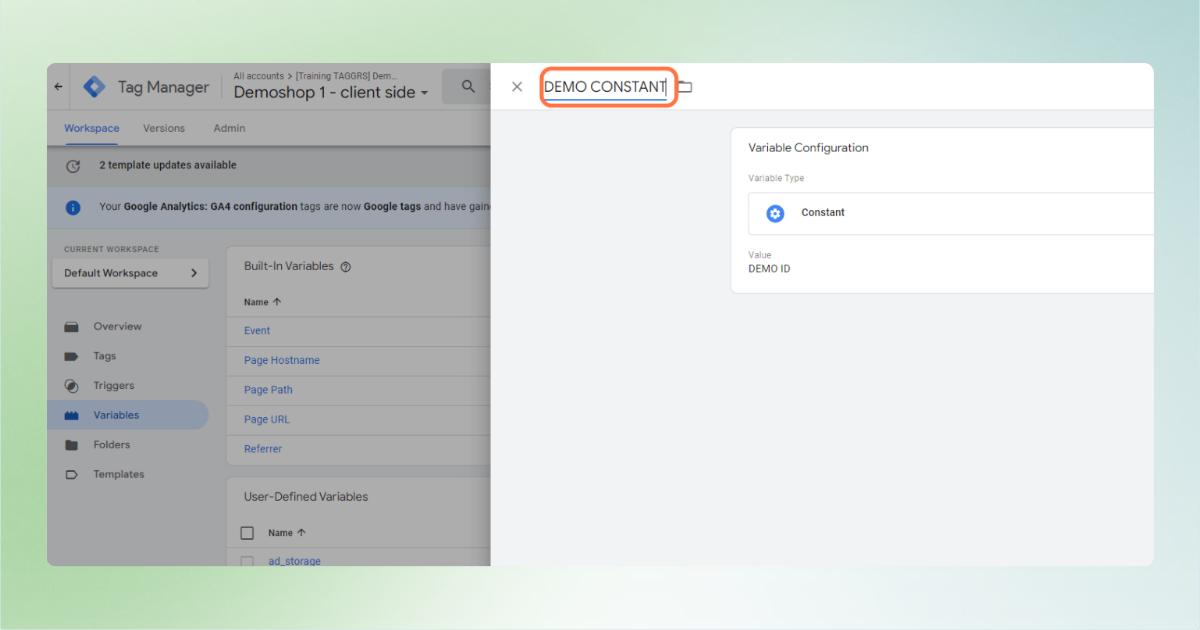
3. Assign a descriptive name to your constant and save the configuration.
With the constant set up, you can now use it across various GA4 tags or any other tags that require this value:
1. When creating or editing a tag, click the Insert Variable button next to the input field where the constant is needed.
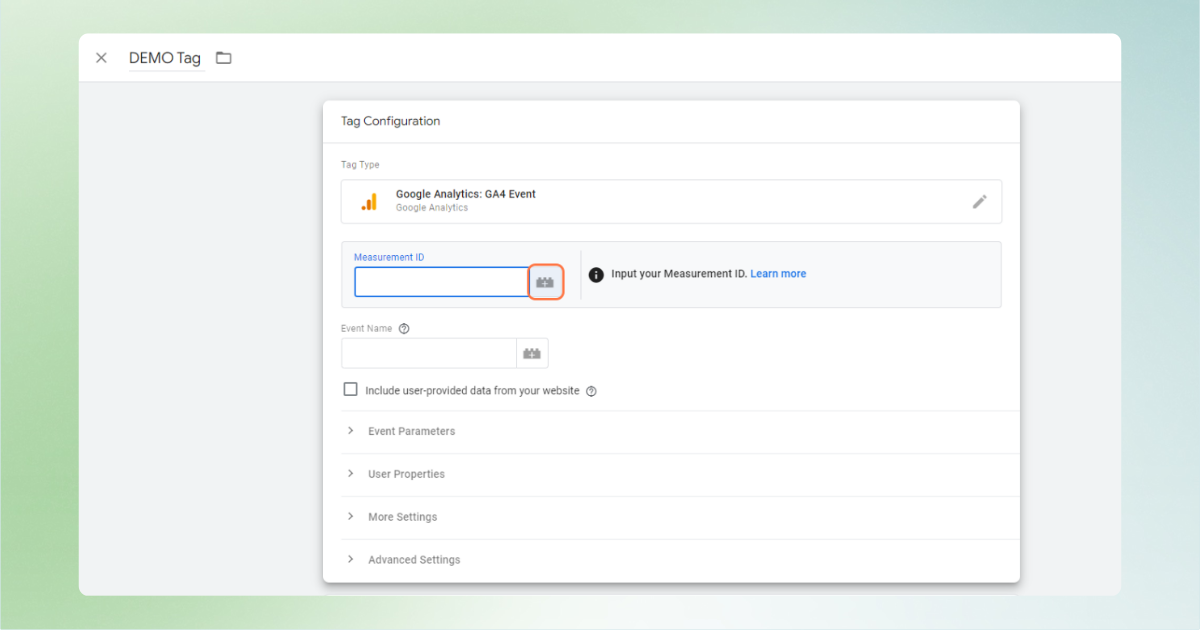
2. Type {{ to initiate the variable selection dropdown, then choose your constant from the list.
By integrating the constant, the need for manual entry is eliminated, thus streamlining the tag management process.
Here you will find the solutions for all the error messages you get when you want to debug in the server container after you have configured server side your tags and triggers.
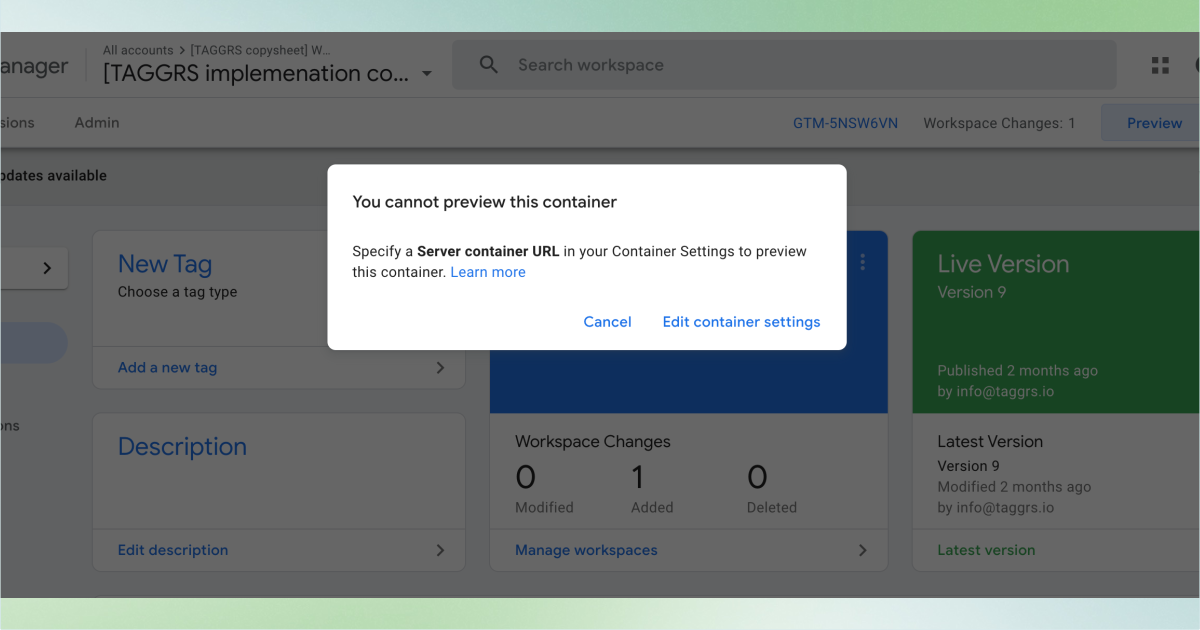
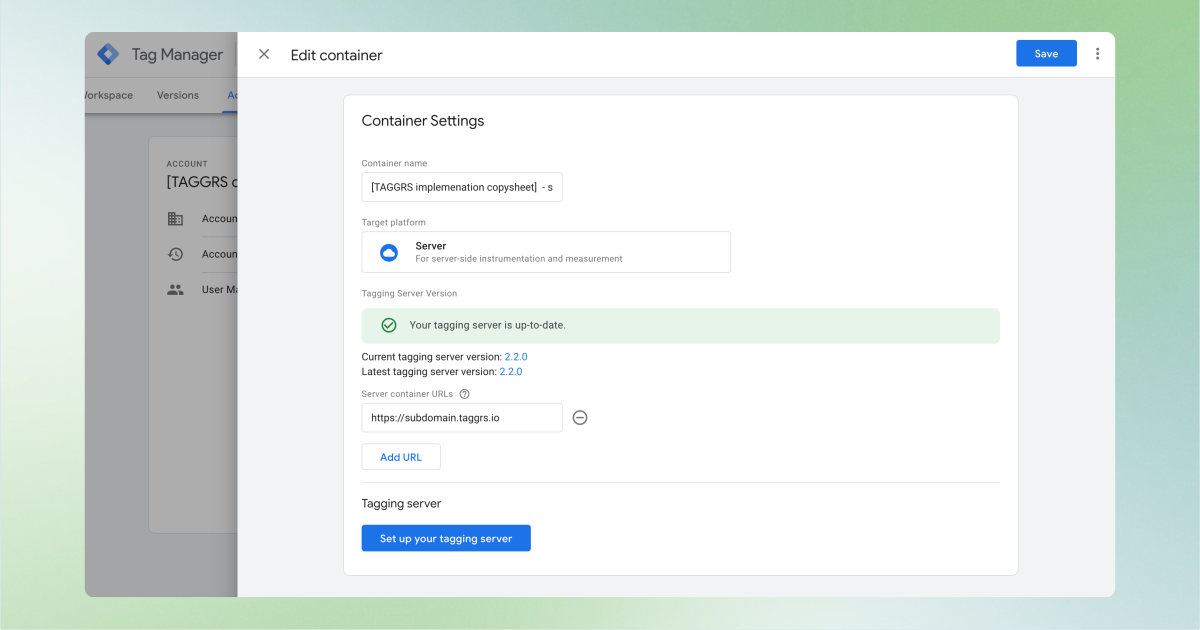
When you click preview mode in the server container you might encounter the error that you cannot preview this container. You can resolve this error by going to Edit Container Settings. Under Server container URLs, add your subdomain including https://. Once you have done this you can start using preview mode.
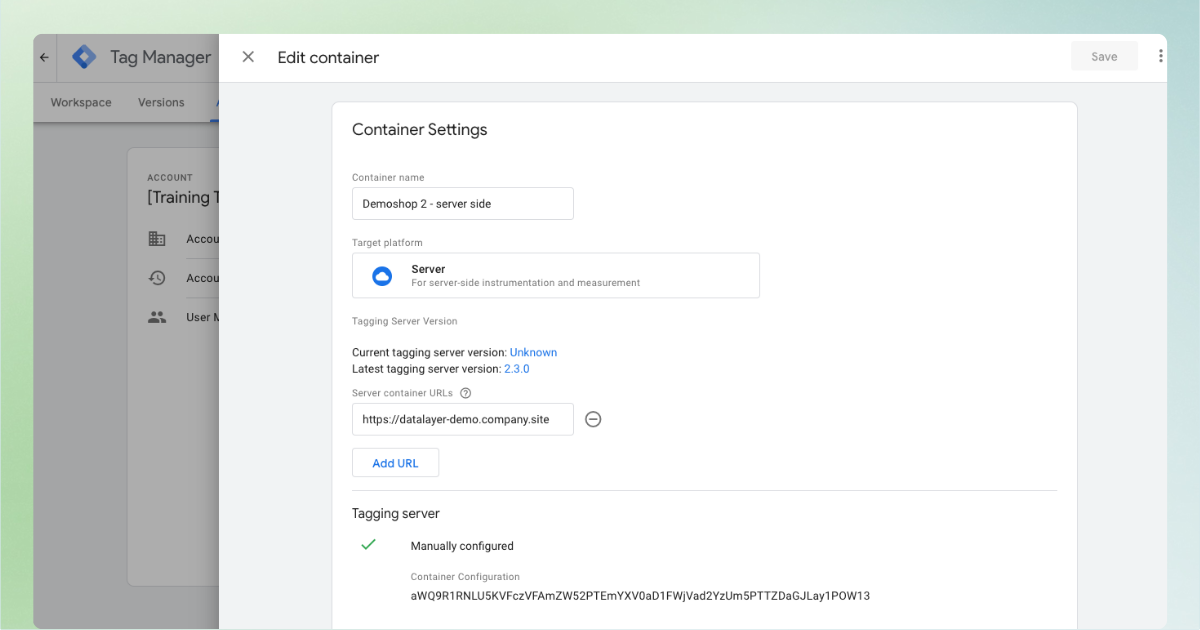
If you encounter the message This site can't provide a secure connection it probably means that DNS has not been validated within TAGGRS as shown in the picture below. So make sure your DNS is validated.
When testing a page in the preview mode of the server container you receive a 404 error. Solution: Within the container settings, your current domain is listed. Here, the subdomain of TAGGRS should be specified; otherwise, you may encounter a 404 error.
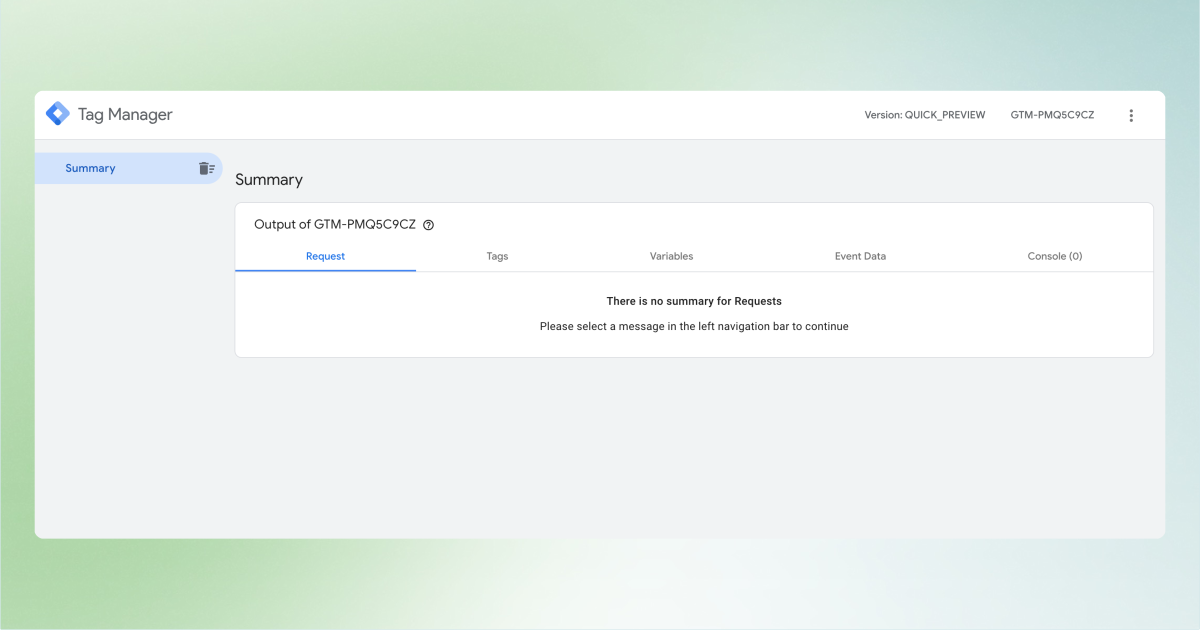
When you get the message Error Message: There is no summary for Requests when opening the server container it probably means that the data is not coming in to the server container. The cause of this is probably that there is another GTM script (hardcoded or by plugin) on the website hijacking this requests which causes the request not to come in. You need to remove this script and then most likely the data will come in to the server container.
• Debug Series: Explore our debug series for solutions to common setup issues.
• Support Tickets: For immediate assistance, contact our support or engage with our live chat within your TAGGRS dashboard.
• Updates: We keep our users up to date via our social media (LinkedIn), and you will receive monthly updates about our software in your email.
Events are now sent through the TAGGRS server and processed server side.
You’re ready to start collecting accurate, privacy-first data.
Happy Tagging!


